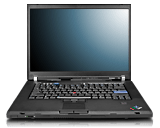
My New Laptop - A Thinkpad T61
Posted by Carlton Bale on July 26th, 2007
I'm gleefully excited to have just completed my order for a brand new Lenovo Thinkpad T61 laptop. I've been a huge fan since my first Thinkpad 600 in 1999, followed by a T20 in 2001, and a T30 in 2003. They are extremely solid, well supported premium notebooks and are well worth the extra investment versus lesser hardware. Better yet, they were provided by work, so I didn't have to buy one. Unfortunately, my employer switched to Dell and I've been stuck with the mandated Dell D620 for the past year. I've gotten used to it, but it's no Thinkpad.
I re-tasked my current desktop as a dedicated server (more on that in a future post) and needed a replacement. My initial reaction was to buy a bunch of parts from Newegg and build a desktop myself — this is what I've done every couple of years for the past decade or so. But after I spec'd and ordered the parts, I experienced a paradigm shift: "Why are you buying a desktop when you really want a laptop." Not 30 minutes later, I receive an alert from DealNews.com that there was a 10% discount on ThinkPads. I canceled my order for a desktop and embarked on the first purchase of a laptop.
The only other laptop I considered was an Apple Macbook Pro. I just purchased one for my father-in-law and it is a great piece of hardware. Truthfully, I went Mac to recduce the number of support questions I receive (I can always claim ignorance with Mac OS.) But after using Mac OS for a while, I was slightly irritated by the interface and very irritated by a lack of free / open-source programs. I'm very specific about the software I use, and some of it does not conform to the Mac way of thinking. Plus, I'd have to re-purchase some of the software I own. The final nail in the Mac Book Pro coffin was that could get pretty much identical hardware for a half the price. Case closed; I'm a Windows / Linux control freak and will remain so for a few more years.
Here are some details on the deal I got:
- 10% coupon from DealNews.com
- 7% cash back from the American Express TailorMade program
- 3.5% cash back from FatCash.com
The Upgrades that I Picked:
- Intel® Core™ 2 Duo T7300 (2.0GHz 800MHz 4MB L2 cache) — passed on the 1.8GHz 2MB L2 Cache CPU
- 14.1 WXGA+ TFT, w/ Camera — an upgrade from the lower-res WXGA / no Camera version
- NVIDIA Quadro NVS 140M (128MB) — I need this to drive my 30" Dell 3007WFP LCD monitor
- UltraNav (TrackPoint and TouchPad) with Fingerprint Reader — upgraded to the fingerprint reader for quicker log-ons
- 100GB Hard Disk Drive, 7200rpm — a priced-reduced upgrade from a 60GB, 5400RPM drive
- 7 cell Li-Ion Battery — the standard 3-cell battery is a joke
- ThinkPad Advanced Mini Dock – unfortunately, this is the only way to get Dual Link DVI-D output; shame on Lenovo for no on-board DVI port
The Downgrades that I Picked:
- CD-RW/DVD-ROM Combo 24X/24X/24X/8X Max, Ultrabay Slim — I don't burn DVDs, so no need to waste money on a DVD burner
- ThinkPad 11a/b/g Wi-Fi wireless LAN Mini-PCIe – I can get an Intel Wireless WiFi Link 4965AGN Laptop card off of Ebay for less than from Lenovo and don't need it unless upgrade to 802.11N wifi at home
- 512 MB PC2-5300 SDRAM DDR2 667MHz SODIMM Memory (1 DIMM) — I can order 4GB of memory from Newegg for the price Lenovo was going to charge me for 2GB; I'm not afraid to take thinks apart
- No 1GB Intel Turbo Memory Card — I'd need to get more memory to qualify for this, plus it's a standard Intel part that I can get a card cheaper off of Ebay than I could directly from Lenovo; I'm not afraid to take things apart
- Genuine Windows Vista Home Basic — the cheapest Operating System option; I already own a Windows OS — and shame on Lenovo for not offering an even cheaper Ubuntu Linux option!
Unfortunately, because I picked the WXGA+ screen with camera, it may be several weeks before I receive my new object of tech lust. I'll be sure to post when I've tried it out.

July 29th, 2007 at 12:06 pm
I was excited when I received my shipping notification e-mail . . . until I read it was for the docking station (advanced port replicator.) It looks like my laptop is scheduled to ship on 2007-Aug-11.
July 30th, 2007 at 2:04 pm
After I placed the order, I realized that the docking station did not benefit from the 10% coupon, so I ended up paying about $20 more than I would have if I purchased it elsewhere. Oh well.
I also realized that the free media card option I selected replaces the ExpressCard slot all together, so I could never use an ExpressCard device. So I called Lenovo and changed from the media card option to the ExpressCard. I'll order a (removable) card reader from NewEgg that fits the ExpressCard slot, so I'll have the flexibility to read media cards or switch to another card. To me, the extra $25 for the non-integrated reader was worth the added flexibility.
Also, I received notification of my $44.07 cash back rebate from FatWallet today. Thank you FatWallett!
August 2nd, 2007 at 9:18 pm
How come you chose the 14 inch versus the 15 or 15 wide? Did you prefer the size/weight of the laptop with the 14 better? I have a T41P with the 14 and am looking to upgrade soon. The X60s is vert attractive just due to size. I plan to use an external monitor so the 12" size may not be an issue. Decisions decisions!
August 3rd, 2007 at 8:15 am
Kurt: All of the T61 models, and pretty much all of the T60 models, are now widescreens only. I had quite a debate between the 14.1" and 15" models. The advantages of the 14.1" model are that it is almost 1" less wide and deep, and about 1/4" less thick, it weighs a bit less, and it costs less. The advantages of the 15" model are larger screen, built-in flash card reader in addition to PC Card and Express Card slots, and more space for a larger system battery.
I almost went for the 15" model since I'll mostly be using it around my house, but I decided I'd still like something slightly more portable and no laptop screen will compare to the external monitor I have, so why fuss of the slightly larger screen. Because I have the 30" high resolution monitor, the T61 with the nVidia card and the dock were about my only option.
At one point, I really wanted an X60 because it is so darn portable and yet still has a full-size keyboard. Unfortunately, it is not quite a powerful as the T60/T61 due to space constraints. Since I don't travel that much and this is basically a desktop replacement for me, I decided on the T series. The biggest T-series advantages are the faster and larger hard drive and the nVidia video card, but the processor and chipset are slightly faster as well.
August 3rd, 2007 at 8:28 am
Carlton, too funny, I'm in the same boat with the same reasoning. Although I don't have the monster size display yet. I was wondering if I could keep my T61 docked while at work and have two external monitors. I use an ergonic keyboard which puts me at a slighlty uncomfortable distance from the screen. The T41P I have now (just crashed yesterday) wouldn't drive two external monitors properly. Maybe these new models would - I'd keep the Lid closed and only use it at home or when traveling. I've noticed the 15" larger screen also goes to a higher resolution so the actual fonts aren't any bigger. it seems to be a realestate debate more than readability. Well, I think I'm on board with the 14" T61P as my T41P was awesome, although somewhat fragile. I'm sure battery life won't be as good with the new model as with my 41P…..we need some new battery tech and lower power displays!
August 3rd, 2007 at 10:11 am
Kurt: you have two options for dual displays. Edit: three options, see comment 8 below. The simplest is to use one external monitor and the ThinkPad screen at the same time. The second, and much more expensive, option is to get a Thinkpad Advanced Dock, which allows the installation of a half-height PCI Express video card. These cards are very common and most can easily drive two 30" displays (as long as the card support DVI Dual-Link connections.) When you dock with this setup, the PCI Express card runs the two external monitors; the internal card would run only the ThinkPad display.
My advise for higher-resolution screens, to prevent tiny font issues, is to change the default DPI setting that Windows uses (Control Panel -> Display -> Settings -> Advanced -> 120 DPI. This allows full use of the display resolution but it scales everything a bit larger in size, so the larger letters use more pixels and look even more crisp and readable. This is what I do with my 30" monitor.
August 3rd, 2007 at 10:28 am
I currently run two monitors, one plugged into the T41 mini dock and the native screen. Ideally I wanted to run maybe two 19" external monitors. One powered from the DOCK, the other from the video out on the laptop itself. So, the "primary screen" would be 1 19" monitor. I don't want the LCD to be primary unless its opened up. This way I don't have to screw around with three screens. My goal was to maintain a two screen setup, and NOT use the LCD screen at all unless the laptop is stand alone.
When putting the T41P in this mode, it kinda sorta works but there seems to be a driver issue where it gets confused which display is primary and the resolutions get mismatched. I guess I'm picky! I suppose the Laptop Screen and 1 30" monitor would probably be fine.
August 4th, 2007 at 7:18 am
Kurt: I stand corrected; there is a third option for dual monitors. You can connect one external monitor to the VGA out and one to the DVI out (on the dock.) You do not need the Advanced Dock and external video card to do this. If you want to drive two DVI monitors at once, you do need the Advanced Dock and a half-height PCI Express video card. Hope this helps!
August 10th, 2007 at 8:23 pm
Another update: $56.29 credit from American Express TailorMade and my new laptop should arrive on Aug-15. Not that anything else is scheduled for that day.
(more details on that one later)
August 21st, 2007 at 3:27 pm
Hi, I am also looking to buy a t61. I am struggling with whether to get the higher end nvidia card or the standard intel card. I don't do any gaming (currently) but want my new computer to work well with itunes, vista business version, viewing videos online, etc. so that it isn't already out of date on the day I buy it (my last computer had trouble rendering the "album" view mode in itunes). Most of the time i will have my laptop docked and connected to my 20" external monitor (1600×1200).
Do you think I should go for the higher end graphics card, and if so, what size battery does one need to get to handle that? Also, if I am traveling and want to make the battery last longer, is there a way to "turn down" the video card so that it doesn't burn as much juice? I guess I am less concerned with good graphics when I have the computer out of the docking station. The Lenovo rep was saying the nvidia card can make the battery lose over an hour of life vs. the intel card (!). Thanks.
-Alex
August 21st, 2007 at 9:29 pm
Alex: The reasons to get the upgraded nVidia graphics card are the need for superior 3-D performance and the need to drive a higher-resolution monitor (30" 2560×1600) that requires DVI Dual-Link.
You don't have a monitor that requires Dual-Link DVI and the only possible 3-D application you've listed is the Aero interface in Windows Vista. With standard (pre-recorded) video and non-game applications, I see no reason the upgraded card. The Intel graphics card will run the Vista Aero interface (I believe, double check this), but the nVidia card is a little faster. So would the nVidia card be worth it to you? I don't think so. Battery life is more important. I'm not using the nVidia card for anything 3-D; it's too bad the Intel card doesn't support DVI Dual-Link.
My two big complaints with my T61 right now are: 1) Battery life - I have the highest capacity 7-cell battery and it is giving my only about 2.5 hours. 2) Vista - it's slow even with 2 GB of RAM and I'm getting all sorts of random bugs, such as sleep mode sometimes not working, not being able to resume from hibernate mode (reboot loop), fingerprint reader drives crashing, etc. I'm going to keep playing around with Vista, but I wouldn't be surprised if I switch to Windows XP before long.
August 21st, 2007 at 10:02 pm
Carlton/Alex, I ordered a T61 also with the Nvidia Card. I figured unless I was gaming it wouldn't take the extra juice over the built in card and leaves more options for later. Regarding battery, my T61 hasn't arrived yet, but will be the same as Carlton's except I ordered the 14" standard screen instead of wide - call me old fashioned, I like the vertical height the standard ratio offers. Anyway, I vista-fied my T41P until the 61 arrives. At first my battery life was awful…..here are some of the optimizations I made. Keep in mind, I don't care about snazzy graphics, games, etc…I just want my OS to run fast and stable with long battery life.
1) Disable System Restore - this can slow the system dramatically
2) Disable all indexing, I use Copernic Desktop Search instead of the built-in windows indexing. It'll kill your battery life depending on settings.
3) Disabled All special effects, Under Performance Options I have "Adjust for best performance" checked which disables all the garbage. I also turned off transparency, Aero, and all that.
4) Disable UAC, its just annoying
5) I run Mcafee Vscan but NOTHING else, and I only use the default access protection. Norton System works or those full suites are always scanning and draining the battery. Some of those apps really eat the CPU cycles.
6) Optimize Power settings. This had a HUGE effect, the default Vista settings just don't REALLY save power. I prefer to have long runs when on battery - some key things…..dim the screen as much as you can tolerate, I start out at the dimmest when on battery and brighten when necessary. I have the screen go dark after 1 minute, hard disk idle after 3, sleep after 20. Wireless is set to max power savings, CPU setting - 25% MAX - these are powerful processors (works fine on my Pentium M 1.8),
I am getting runs close to 4 hours with my standard battery, 5 with extended. NOTE, I am a super mobile laptop power user constantly on battery for long runs. Over the years I've noticed a battery stays "good" for less than 1 year. My last extended battery was at 52% max capacity after 9 months usage.
Anyway, I'll report back after I get my T61. I hope the battery life is better than 2.5 hours!! I know the new processor probably draws much more power than my Lowly Pentium M, I hope not that much more!!
Let me know how it goes with the optimizations!!
August 22nd, 2007 at 7:08 pm
Kurt, thanks for your thoughts on how to extend the battery. I will use these when I get my computer and when it is out of the docking station.
Carlton, thanks for your response as well. I ended up going with the invidia card because I really like visuals in general, and didn't want to compromise on that with a brand new computer. The lenovo rep said that the intel card compared to nvidia would be more "sluggish" with some aspects of business vista (specifically the aero interface). I also read in some other places that said this as well. Finally, I wanted to make the laptop a little more "future-proof", in case itunes or google earth use more 3-d features, in case I want to try out a video game, etc. The price differential was not large, and I will just adjust my power settings when out of the docking station to make the battery last longer.
I wish I didn't have to make such a large trade-off of performance/battery life, to be sure, but hopefully someday we can have the best of both worlds…
August 22nd, 2007 at 8:45 pm
I played around with the power settings; the defaults were all messed-up and the CPU was not set to throttle back. I also decreased the default screen brightness when unplugged. I don't know exact battery life, but it's well of 3.5 hours. I've been using it on and off all afternoon with WiFi and bluetooth enabled and I'm still going.
Kurt: thanks for the hints! I haven't made all the changes yet, but I'm already seeing improvements. There is an auto defragmentation program (DiskKeeper Personal) that I need to disable as well. . .
August 22nd, 2007 at 9:00 pm
There are few power management concepts that have changed over the years with the thinkpads and Windows. Prior to the T6X series and when using XP, IBM power management took over the windows settings and dynamically moved you to power save mode when on battery. With Vista, at least on the older thinkpads, this works differently now. I notice the IBM utility actually configures a custom Windows Power save mode but doesn't dynamically change it. So….you have maybe three choices now. Balance, Performance, and Power save when looking at Windows power saving. The idea I figured out, was that the computer is no longer switching modes like it did before and who wants to do that manually! So now we know the power mode is static no matter which one you choose, but within the mode there are battery/plugged in settings. So, I chose one - the one called Power Source Optimized (Customized by IBM I think), you could choose balanced or whatever. For plugged in mode I pretty much maxed everything out. For battery mode I went stingly on just about everything. I think the brightness is one thing you can't set directly in Windows right now, but the IBM power management overlay allows you to do it….
I rec'd my T61 today…..I replaced the default hard drive with a Hitachi 7k200 - 25% faster than the closest rival, but IBM doesn't ship it for some reason. Anyway, the computer looks good and should be fast. My docking station got stolen at UPS, so who knows when I'll get it. More to come.
August 23rd, 2007 at 2:51 pm
Im looking into buying a T61 and I have a dell 24" monitor. As I understand there is no dvi port on the laptop but one can be added via the port replicator/docking staion. with the Nvidia card are you able to drive your 30" monitor at max res? I was looking at this http://www.nvidia.com/object/quadro_nvs_notebook_techspecs.html and it says max digital display res for this card is 1600×1200 and max analog is 2048×1356. Id just like to know if thats the case or if thats talking about internal display only.
thanks
August 27th, 2007 at 4:38 pm
Carlton, do you notice your memory usage under Vista? Maybe Vista is more aggressive with Memory usage, but mine is using 1 gig before I open any apps…. a similar config on my T41P, with VISTA, used 512 mb. The new system has twice as much memory. I wonder if the system recognizes that and tries to load more into memory….. I haven't tried a true battery test yet, but should do so this week.
August 27th, 2007 at 6:00 pm
Kurt: I'm getting about 800MB memory usage (of 2GB total) with nothing but the default programs loaded at startup. If I remember correctly, Vista does more caching to improve performance. I'm using Windows Vista Home Basic, so it may give slightly different results. I'm either going to upgrade to Vista Ultimate (to get more of the Vista features) or downgrade to XP.
August 28th, 2007 at 9:23 am
Has anyone else had a problem with the power management features? I cannot add or delete a new power plan in Windows or Power Manager. I cannot access any of the Vista power management functions directly. When I go to "presentation mode", it still puts itself to sleep after a while. I usually work with my laptop plugged in and run a lot of things that don't require me to be at the keyboard so I don't want it to go to sleep when it is processing. I was able to keep my old Dell notebook awake with no problem, so I am not sure what is going on here. Is it a Vista problem or an IBM problem or both?
Thanks,
Allan
August 28th, 2007 at 10:00 am
The Thinkpads have their own power overlay which adds/removes extra power plans to the built in windows plans. There must be an API somewhere as I've not figured out how to do this manually. You can modify the built-in windows plans themselves by going to start/settings/control panel/power options then modifying each option. Note, if you are NOT using the thinkpad power management, Vista itself will only change within a mode…. so lets say you are on "power saver" - there are two sub modes called Plugged in and On Battery. You can customize those to your liking.
I personally prefer using the Thinkpad utilities. So the easy way is when giving a presentation right click on the green battery and choose Maximum Performance or Presentation setting. You can also modify those settings if you wish via the Thinkpad utility, but the defaults are generally good. I'm unsure if Presentation Director automatically changes the power mode - I've not yet used it on my new T61. I know it didn't auto switch on my T41P…I had to both flip the power mode to Max performance AND then open presentation director to give my presentation.
August 30th, 2007 at 8:40 pm
I restored the factory settings and all of the power options came back. I think I must have installed something that messed up the registry. I am watching what I install this time.
Thanks,
Allan
August 31st, 2007 at 8:54 am
Here is a list of Vista performance tweaks:
http://mostlysavingmoney.com/2007/06/top-10-windows-vista-speed-tweaks/
August 31st, 2007 at 2:09 pm
SUCCESS!
I successfully am using botht he analog VGA and digital DVI inputs on my T60. Thanks for the recommendations. I'd consider the other option (Thinkpad Advanced Dock) if I perceived any degradation of the analog vs. digital inputs, but I see none to date.
August 31st, 2007 at 3:20 pm
Robert, that's great news. I've never been able to tell any difference between VGA vs. DVI video quality either. Glad to hear it is all working.
September 2nd, 2007 at 5:19 am
I am considering a T61 or T61P and have now read this thread. Could you please help me by clarifying the Dual DVI options:
1) As I understand it, the small dock ("IBM Advanced Mini-Dock") provides a pass-through DVI dual-link. This will give the built-in LCD + built-in VGA out + 2 DVI high-res monitors (or a 30" dual-link, like your Dell). That's 4 at once - is that correct?
2) The "big" dock ("IBM Advanced Dock") gives you the above, plus a half-size (meaning "half length", not "low profile") PCI Express 1X slot. In this you can fit a graphics card with dual DVI dual-link, letting you drive the above, plus 4 DVI monitors (or 2 30")?
I know that this is the extreme case (and I don't need that many monitors) - but it's pretty hard to identify where the limitations and gotcha's are in this kind of setup.
Thanks for any insightfull feedback.
September 2nd, 2007 at 11:15 am
Morten: What you listed is not the case. Dual-link DVI is a single DVI connector with all of the pins in the connector active, so it can address twice the number of pixels on a single monitor but not two monitors. So, at most, the Advanced Mini-Dock could do 3 monitors (internal screen, VGA out of laptop, DVI out of dock).
If you use the big Advanced Dock, you can install a PCI Express card that has 2 DVI outputs (can be single-link or dual-link, doesn't matter) and control 2 monitors with that card, plus the internal and VGA ports. The ThinkPad Advanced Dock accepts a standard height (111.15 mm (4.376 in.)) and half length PCI Express Cards (167.65 mm (6.6 in.)) only.
Now, whether or not the software can handle all 3 or 4 monitors at the same time, I'm not positive. I would guess that it could, but that is just a guess at this point. I could test out 3 monitors at a time if you need me to do so.
September 4th, 2007 at 11:29 am
Carlton: thanks for your answer and the Adv. Dock info. I have researched quite a bit on "splitter cables" now. You can get them everywhere, but they will only let you run the same signal on two monitors. You can get hardware splitter boxes that split DVI DL (dual-link) to individual DVI signals, but these are expensive and also takes up space.
As you write, the DVI DL signal is only for one monitor. Wikipedia explains this here. DVI DL uses separate pins for the "second part" - it doesn't just run at double clock speed. Then I thought: if the driver could just route data for the second display to these pins, you would have two separate signals. Well, apparently this is not how it works.
To run 3 or 4 monitors from a single card, one must buy cards with special connectors (and other types of GPUs). On a distance these looks like DVI - they are also white - but aren't. ATi have some "FireMV" cards with special connectors (DMS-59 and (VHDCI). NVidia also has DMS-59 cards for 2- and 4 monitor setups called Quadro NVS 285 / 440. And Matrox is still in the market with their cards - which also have special connectors. At present, the 4 monitor ones costs $400-500.
I am not the only one on the net that was confused about this (Google shows): your results are not very clear when you search on "splitter cables", cable shops often don't state very clearly that splitter cables will just mirror the signal, the connectors on quad-monitor-PCs look very much like plain DVI - but are not, an so forth.
And last, but not least: yes, I would like to know, if the ThinkPad can drive 3 monitors. That sounds very interesting. From this thread it also sounds like the analog picture quality is good. Thanks for your help.
September 5th, 2007 at 7:43 am
I have a T61p with an advanced docking station. I purchased a second hard drive to use with the docking station ultrabay HDD adaptor. When the second hard drive is inserted, My Computer does not recognize the second hard drive. How does a person enable the second hard drive? Many thanks.
September 5th, 2007 at 9:11 am
Morten: I tried to connect two external monitors at the same time and had no success. When my T61 was on the Advanced Mini-Dock, I could access the dock DVI port and the internal screen. When it was undocked, I could access the integrated VGA port and the internal screen. The nVidia software has a "dual view" setting; it mentions nothing that would make me think it supports more than 2 monitors at once. It seems the VGA port is deactivated when the T61 is docked. If you want more than one external monitor, the best bet is the Advanced Dock with a PCI-Express video card that supports multiple monitors.
September 5th, 2007 at 9:15 am
Frank: have you formatted the drive yet? You won't see a drive letter until your format the drive. I'm not sure about Windows Vista, but in Widnows XP you do the following: Start->Control Panel->Performance and Maintenance->Administrative Tools->Computer Management->Storage. Select the unformatted drive and initialize/format it (select the NTFS file system when prompted). Windows should then ask you which drive letter you want to assign to the new drive, or it will just auto-assign it.
September 6th, 2007 at 12:43 pm
Carlton: thanks for your help. I think that the nVidia chip must constrained by having "only" 2 RAMDACs. I have now also checked up on this at work where we have a lot of 2 and 3 monitor workstations (investment bank); IT techs used Matrox before and nVidia Quadro NVS 440 now.
September 6th, 2007 at 12:50 pm
Carlton - Many thanks. The hard drive is now formatted, recognized by My Computer, and it works flawlessly (and seemingly very fast)in the slim drive with the adaptor. All is swell. Thanks.
September 8th, 2007 at 8:23 pm
Can someone please verify that the t61's nvidia quadro nvs 140 does indeed support dual-link dvi? Nvidia's webpage seems to indicate otherwise (the max resolution listed is only 1600 x 1200): http://www.nvidia.com/object/quadro_nvs_notebook_techspecs.html
Thanks!
September 9th, 2007 at 9:58 am
Merek: The nVidia Quadro NVS 140 absolutely does support high resolution, dual-link DVI. Check out this post for details (and a picture of it in action!):
http://www.carltonbale.com/2007/09/review-of-my-new-thinkpad-t61/
September 19th, 2007 at 12:08 pm
I just ordered the T61P with the following:
- Vista Pro Series
- 2 GIGs of Ram
- 15.4" wide screen
- 100 Gig hard drive
It will not arrive until October. Any suggestions to avoid slow performance when I start it up for the first time. I had a T42 and hope this will be much faster.
Any thoughts?
Thanks Jim
September 19th, 2007 at 12:12 pm
Jim: Some options are to 1) get the 1GB built-in flash memory and use Vista ReadyBoot feature 2) Don't shut it down (use sleep or hibernate) 3) follow the Vista performance tweaks and disable all of the services / programs you don't need. Vista is an OK operating system, but initial boot speeds are not its strong point, even with ReadyBoot.
September 19th, 2007 at 12:27 pm
Jim, I'm a Windows Guy….and came from a T41P. With all the tweaks mentioned above my Vista PRO feels NO FASTER than XP did under the T41P. The only exception would be for a compute-intensive task that drills the cpu. I suspect loading XP would make a massive difference. In fact I run a VM under Vista that runs a few legacy XP apps that won't work under Vista…now you all may think this is implausbable, but my VM is all around snappier and more responsive than the Host OS Vista. Figure that one out.
So my advice is load XP if you want speed or hope Vista SP1 fixes things…. I really like this new Laptop though. It handles multiple montitors and all things hardware related very well. Battery life is good too.
September 19th, 2007 at 1:30 pm
thank you everyone,
I may have to go this blog when I get the think pad for further help. I may be dissapointed.
I hope the 2 gigs helps some.
Jim
September 29th, 2007 at 4:58 pm
Hi guys,
This seems to be an excellent thread regarding multi-monitor support for Thinkpads and the Advanced Docking Station, so I thought I would try my luck…
MY GOAL: I want to run 3 DVI monitors simultaneously from an X61 notebook (while docked). I believe the only chance to accomplish this is to use the Advanced docking station, installing a PCI express video card with dual DVI outputs, and then using the PCI card for 2 of the monitors and the docking station's DVI output for the third.
MY CURRENT SETUP: I run 3 DVI monitors with no problem by using a Dell Latitude D810, Dell port replicator and a Digital Tigers sidecar, which uses the D810's PC card interface (accessible while the notebook is docked). Everything works great, but I will be traveling more, want a smaller/newer notebook, and would prefer a setup where I don't need to run the Sidecar into the notebook (also, the Sidecar demands a specific PCMCIA Carbus controller, Texas Intruments, and it seems like fewer and fewer notebooks are using the TI controller).
QUESTION: Can I run 3 external DVI monitors using the X61 and the Thinkpad Advanced Dock? If so, any PCI cards that are confirmed to work with this setup? Any other issues or things I need to know?
(the 3 DVI external monitor setup is important to me as I already have 2 setups, with Ergotron stands, etc, and they work seemlessly together in each of my offices - not looking to use the Thinkpad monitor at all when docked and driving the 3 monitors)
September 30th, 2007 at 1:56 pm
Robert: I think you can run 3 monitors via DVI using the setup you described. I can't test it, but I believe you can use the internal video card, as well as one in the dock, at the same time. A better bet might be to get a Matrox card with 3 (triple-head) DVI outputs. This would keep you from having to mess with configuring 2 video cards and any potential conflicts 2 cards simultaneously might bring (such as remembering which screen is one the left, the resolution of each screen, etc.).
September 30th, 2007 at 4:30 pm
Robert: from Lenovo's web site, it does not look like the X60/X61 supports the Advanced Dock, only a X6 Ultrabase, which is a portable, light weight (0.67kg) snap-on thing with optical drive or extra battery capacity in an "Ultrabay". I think, you should verify Adv. Dock compatibility with Lenovo before putting your money in a X61… Odds are not good - I'm afraid - Lenovo does not suggest the bigger docks, when you search for accessories. :o(
Also: the X61 hasn't got the same powerful graphics card built-in that the T61 has - it only has the Intel on-chip one with VGA out - not DVI. The Ultrabase also only has VGA.
My guess is, that Carlton's setup is one of the lightest ones, you will find at present if you need the sophisticated docking options. The T61 14" is 2.33kg.
September 30th, 2007 at 9:04 pm
Morten is right, I'm afraid. I was thinking T61, not X61. I'm pretty sure it does use a different docking system.
October 2nd, 2007 at 2:09 pm
Thanks for the info, guys. In continuing my research, I came across some pretty interesting information regarding the Advanced Docking Station:
http://www.tradersworld.com/computers/ThinkpadT60p%20with%20Advanced%20Docking8.htm
The ThinkPad Advanced Dock offers full connectivity and desktop expansion for users of next generation ThinkPad systems.
It is ideal for notebook users who use high-end graphics or multiple monitors. It has been tested and works with three multiple monitor cards. The PNY NVS 285 (2-DVI Ports) , the NVS 440 (4-DVI Ports) and the Matrox P65MD0E125 (2-DVI Ports) QIED128PAE video cards (4 DVI-Ports).
Now I realize this is not the same as a statement from tech support, but it's the first source I have seen that offers me a solution, and I am encouraged by the specificity of the cards that it claims are supported. I may try Lenovo now to see if they can confirm this.
October 2nd, 2007 at 2:19 pm
OK this is a little strange, in another part of the same article, the reviewer walks through set-up, but it looks like he is using an ATI FireMV 2400:
http://www.tradersworld.com/computers/ThinkpadT60pwithAdvancedDockingStation_4.htm
I will email the reviewer and see if I can get any info.
October 22nd, 2007 at 7:03 pm
I am posting this to see whether or not I was hallucinating when I ordered my T61 (in early October).
I went through the Lenovo site, specifically my company's employee purchase program (nice discount). I *believe* I selected the upgrade to 2 yrs of Norton Internet Security (from the free, included 90-day trial subscription). When the laptop arrived, there was no Norton product key. I checked my email receipt and no mention of Norton, trial or otherwise. I went on the Lenovo site and the prices were all the same as when I ordered, *except* that there were no options for anti-virus at all (now this seems strange, Lenovo will sell you additional Corel graphics software, but no anti-virus, whether from Norton, McAfee or otherwise??). Well, I went ahead and configured my system the same as I ordered it (this time without anti-virus, as it was/is not available on the website) and lo and behold, it came in ~$80 cheaper, about the same as what I believe I paid for the 2 year upgrade.
So am I imagining things or did the Lenovo site used to offer the purchase of anti-virus software?
October 24th, 2007 at 8:48 am
No, I don't think that you are imagining it. I have been contemplating the T61P 14.1 Widescreen for some time, and I am certain it used to be there. Similarly, you could also get the WXGA+ with the camera. That's no longer available. I ordered this week, and needed to call customer service to correct the order from Vista to XP, and was told then that the 7 cell battery was going to push my order into January. The 7-cell battery is no longer on the web site either. My current estimated ship date (with a 4 cell!) is Mid November, ordered 10/22.
October 24th, 2007 at 1:09 pm
Wow, sounds like many of the options I selected aren't readily available now. I'm glad I got the cofig I wanted, but I wonder what the deal is with availability. It's strange to be in that much of a back-order situation.
October 29th, 2007 at 3:18 pm
I purchased a T61 with the Advanced Dock so I could run 4 monitors.
My T61 has the nVidia Quadro NVS 140M internally.
I purchased four 17" external monitors.
To run the monitors, I got an nVidia Quadro NVS 440.
I am running Vista Ultimate.
When I installed the Quadro 440, the laptop will not boot to Windows. It displays the BIOS screen, and then shows the Microsoft Corp screen with the green progress bar. Then the screen goes blank and the login for Windows never displays. I have gone into BIOS and set the PCIe graphics card as primary, and the display to the correct setting. The laptop simply will not boot. Lenovo support has been unable to help, and neither has the company which sold me the screens and graphics card. Lenovo claims the Quadro NVS 440 should work.
Anyone know why this combination would be having problems?
October 31st, 2007 at 9:50 am
An update to my postng of Oct 24th. My new laptop arrived Monday 10/29! Dispatched 3 days after order. Not sure what happened to the month delivery time, but this was a pleasant surprise. I'm gradually getting things installed. Having trouble with a blue tooth mouse which is causing a blue screen and IRQL_LESS_THAN_OR_NOT_EQUAL error, but apart from that, I love it!
November 3rd, 2007 at 8:48 am
Carlton,
Are you running your Dell 3007WFP directly off of the DVI port on the Docking station or did you install a separate PCIe video card into the dock? If so, what card? nVidia's site indicates that the max res on the Quadro NVS 140M is only 1600×1200.
I bought a T60 back in June and cannot get anything to work with my 3007WFP.
November 3rd, 2007 at 12:26 pm
Tom, please see this newer post: CarltonBale.com - Review of My New Thinkpad T61
November 22nd, 2007 at 4:39 pm
Robert:
The article with the instructions for setup of advanced dock with PCIe graphics is for the T60, not the T61. These laptops are different.
At this time, I cannot confirm that the NVidia NVS 440 works in the advanced dock. I have this card and my laptop will not boot to windows when this card is installed in the dock. Digital Tigers is sending me a ATI FireMV 2400 PCIe so I can test that. I will report back with my findings next week.
FYI - I called Lenovo tech support to ask them if they have a T61 laptop working with the advanced dock and a PCIe graphics card. They said they did not have one at the support center. I asked if they could give me a list of approved cards. They said they could only say that the Lenovo ATI cards work. But those cards are both only capapble of 2 displays. This is pointless because the onboard graphics card for the T61 can run 2 monitors on it's own. In Vista, you can't run simultaneous graphics cards by different manufacturers. (ie you can't run an ATI card at the same time as the internal NVidia) So buying a Lenovo grpahics card would be pointless because you can already run 2 monitors with the internal graphics.
November 22nd, 2007 at 4:42 pm
Robert:
My suggestion to you is to not purchase any monitors or the advanced dock yet. I have not been able to talk to a single person who has actually seen the T61 laptop work in the advanced dock with a PCIe graphics card. At this point, there is no assurance that the advanced dock performs as Lenovo advertises.
Don't get any equipment yet. Wait until we can confirm that this setup indeed works. I have a feeling that Lenovo made a serious goof with the T61. They assumed that since the T60 works, the T61 should too. But they did change graphics cards and this seems to be affecting things.
November 27th, 2007 at 12:07 pm
I received a different PCI-e graphics card today to test with my advanced docks. This time I was trying an ATI FireMV 2400.
It would not work either. Laptop will not boot with the card in the dock.
I called Lenovo tech support. I asked them a very simple question:
"Has anyone seen a T61 laptop work in conjunction with the Advance Dock and a PCIe graphics card? Any graphics card."
Their answer: "No". And he asked his supervisor who also said No.
So Lenovo is unable to confirm if the Advanced Dock can do the very thing it was designed to do. Sounds like false advertising to me.
November 27th, 2007 at 2:02 pm
This is very disappointing. I specifically asked about the compatibility of the T61 and the advanced dock, was given a "no problem" response, which I took with a grain of salt, but given that the T60 was compatible, I went ahead and purchased the T61. I am out over $2500 for the laptop, dock and the NVS 440 card I bought… And the laptop does not do the one thing that I need it to do… I have a feeling I am in for a nasty fight with Lenovo, because I am NOT a satisfied customer.
November 27th, 2007 at 3:12 pm
It is not your fault you listened to Lenovo. They advertise that the Advanced Dock works with PCI-e graphics cards. I trusted them, too. I spent a lot of money on a T61 laptop, Advanced Dock, four Samsung monitors, and two different PCI-e graphics cards during my troubleshooting process.
Fortunately for me, Digital Tigers has been very helpful. They are the company which sold me the monitors and graphics cards. They are allowing me to return the graphics cards for a refund, and they are sending me an additional monitor stand. That way I can take two monitors home and keep two at the office. I will be able to use all four of the monitors I purchased, just not at once as I had hoped.
I have returned the extra Advanced Dock back to Lenovo, along with a detailed letter about the issue. There is also an open tech service ticket on the issue. In my letter, I went over every step in my troubleshooting process. I am hoping they will escalate the issue to a higher level at Lenovo, and perhaps find a solution. My feeling is that this is a BIOS problem.
I will continue to post my progress here for everyone.
Robert - You say you have the dock and NVS 440? Do you have the same problem with the laptop not booting to Windows when the card is in the dock?
November 27th, 2007 at 3:40 pm
Hi John,
I do have the T61, advanced docking station (along with an extra DVD drive that I was going to use in the ultrabay enhanced slot) as well as the NVS 440. I bought my stuff around the same time that you did, but I got so busy with work that I never got around to opening the docking station, DVD drive or NV@ 440. After your experience, I think I will leave everything in their boxes.
This may be one of those cases where I should have stuck with what works for me (my current Latitude D810 and a Digital Tigers box). I do like to upgrade every so often for more storage, speed, and in the case of the T61, I love the AT&T built in wireless WAN card, which was not available when I bought my D810 about 2 1/2 years ago.
In an effort to salvage at least the T61 itself (which I do like quite a bit), what is your setup to get 2 external monitors working? I suppose I could give away one of the three that I currently have in my home office and make due with two, as I don't find myself working from home nearly as much as I used to (and I have three monitors with my desktop in the office).
November 27th, 2007 at 5:25 pm
If you have the T61 with NVidia internal graphics card, then you can run 2 external monitors by getting any of the Lenovo docks. I recently ordered a R61 for a co-worker along with the mini-dock. She is running 2 external monitors with that setup. The advanced dock will drive 2 monitors, as well. It has a DVI and a VGA output on the back.
Digital Tigers has been great. Way more help than Lenovo tech support. They are taking back the graphics cards they sent, too.
FYI - I called tech support at Lenovo again, and they have agreed to escalate my issue to a Lenovo Service rep. (I don't know what that is, but they said it was the next step in the hierarchy) I will hopefully have a chance to discuss this with someone more knowledgable. As always, I'll keep you posted.
For now, the best thing to do might be to continue waiting. I may have more info soon, assuming Lenovo contacts me back. As curious as I am to hear what happens with your NVS 440 and T61, I cannot in good conscience tell you to try it out.
November 27th, 2007 at 7:47 pm
Argh.
I specifically "downgraded" to the integrated graphics adaptor because the battery life is supposed to be better than with the nVidia graphics, and I figured that when I needed nice graphics I would have my T61 hooked up to my advanced dock/NVS 400 setup. So my investment continues to fall short of its promised capabilities.
I agree that Digital Tigers is very supportive, the problem with their product is that fewer and fewer laptops are being produced with cardbus controllers that allow the use of their SideCar product (which I own and use with my Latitude D810). None of the current Thinkpads are compatible, and only one Dell (the beastly Precision M5300) is compatible.
I wish you luck in hearing back from your Lenovo rep, but I would not hold my breath.
November 27th, 2007 at 8:32 pm
It may still be possible to run dual monitors with the integrated graphics. I honestly don't know. I just said that the NVidia does work because that's what I have and it is working for me with 2 monitors on my dock.
Then again, the fact you don't have the NVidia graphics might also be a good thing with respect to the dock. I'm only guessing here…. but perhaps the lack of a graphics card would be the difference?
November 27th, 2007 at 9:07 pm
John,
You make a good point. My initial assumption was that I would set the T61 so that when in the docking station, it would use only the NVS 440 card and would completely bypass the onboard graphics chip on the motherboard. Maybe the fact that I chose integrated graphics will work to my advantage here. Somehow I doubt it but may be worth a shot. I might have to unpack my gear this weekend and try. It will all depend on if my schedule allows it.
November 28th, 2007 at 9:24 am
Spoke with a Lenovo rep just a minute ago. Gave him all the details about my issue. He wasn't really prepared for dealing with something so technical. I asked him to please check with engineering to confirm if anyone has seen a T61 laptop with Vista work with the advanced dock and a PCI-e grpahics card. If so, please identify the card that works. He said they would get back to me about it.
November 28th, 2007 at 1:54 pm
Well I am still not overly optimistic that I will get my setup working, but it is at least worth a shot, since I have the onboard graphics chip (vs. your nVidia card) and am running XP Professionsl (vs. your Vista)… so maybe, just maybe, that will make a difference. So when I go to set things up, is the key to install the NVS 440 in the docking station first, and then set the T61's BIOS so that it looks to the docking station graphics card alone? Or do I just need to muddle through it and see what might work?
November 28th, 2007 at 2:41 pm
Yes.
Install card in dock.
Place laptop in dock.
Turn on laptop, begin tapping F1 key.
Laptop goes to BIOS Setup.
In BIOS, select Config then Display.
Change Primary Graphics Card to "PCI Express"
Change Default Display to DVI or VGA, whichever you are using as your primary.
Save Changes and exit BIOS.
Laptop will reboot.
If your setup works, the laptop will boot to Windows normally.
Once Windows has booted, insert CD-ROM for installing drivers.
November 28th, 2007 at 2:43 pm
Before you do this, however…. I suggest you do the following:
1. Boot laptop normally, outside of the dock.
2. Run Lenovo ThinkVantage Updater. Get any Critical Updates, and then look in the Recommended Updates for any BIOS Updates.
3. Make a Restore Point for your OS, just in case you need to recover.
November 30th, 2007 at 2:46 am
Dear all,
How can I downgrade my OS from Vista Home Premium to XP Professional ?
November 30th, 2007 at 7:55 am
Unfortunately, you can't. The free downgrade CD is available only to Vista Business and Vista Ultimate customers. Here is the IBM/Lenovo downgrade info:
http://www-307.ibm.com/pc/support/site.wss/VSTA-DWNGRD.html
December 2nd, 2007 at 12:51 pm
OK I went ahead and tried out the NVS 400 with the advanced dock.
Didn't work. No matter what I did to the BIOS, the T61 would not get past the Thinkpad initial screen (didn't even get to the Windows XP screen.
I thought maybe it was this particular card, and so I went to Best Buy and picked up a PNY nVidia GeForce 7900 GS and an ATI Radeon X 1650 Pro. Both offer dual DVI output, so I was hopeful that I could get one of the cards to work and at least run 2 external DVI monitors, or use the onboard graphics on the T61 to drive one external monitor and let one of these cards drive the other two (Windows XP allows this, and this is exactly how I drive 3 external monitors with my Dell Latitude D810; one from the DVI port on the docking station using the D810's onboard graphics, and the other 2 with a Digital Tigers box using the D810's PC card slot).
No dice with either of these cards either. Same problem, will not get past the Thinkpad loading screen. Again, this was despite whatever BIOS settings I tried.
It seems that the mere inclusion of any PCI-E card in the docking station locks up the system.
Now that I have the docking station unpacked, I have the T61 driving 2 external monitors (one with the DVI port on the dock, the second with the VGA port on the dock). While this is better than one external monitor, this was not what I bargained for.
Best Buy cards go back today. Probably will have to eat a loss on the NVS 440. Not sure what I will do with the T61, dock and accessories.
Not happy.
December 2nd, 2007 at 1:26 pm
Robert,
I'm very sorry it did not work for you, either. But I do sincerely appreciate your reporting back on the matter.
Since my last post I have not heard back from Lenovo engineering dept. On my last call with Lenovo, the customer care rep did not have any answers for my question about the T61 and Advanced Dock. He said he would have to escalate the issue and they would reply to me. So I remain hopeful they will contact me again soon.
I will be mentioning your experience to Lenovo when I speak with them again. It seems quite evident this is not an isolated problem. Both of us have tried different PCI-e cards, and I have even tried different docks. Our results have been nearly idential. Laptop fails to boot to Windows when any card is installed in the dock.
December 2nd, 2007 at 3:19 pm
Yes, it does appear that yours was not an isolated experience. I did make one mistake in my post though. I actually only tried the dock with the ATI Radeon X 1650 Pro, but not the PNY nVidia GeForce 7900 GS. The GeForce is not a half-length card and did not fit in the dock (couldn't tell from the Box at Best Buy and thought I would give it a shot). I just made a mistake typing this morning as I was staring at the 2 boxes that needed to go back to Best Buy. But it still looks like the T61 + Advanced Dock + PCI-E graphics card is a losing combination, whatever card you nay try (until we hear of one that works).
December 2nd, 2007 at 11:27 pm
I also have fell victim to the Advanced Dock Muiltiple Monitor Money Pit. I have the T61 with the Intel onboard graphics and the PNY Nvida MVS 440.
I have installed the card and updated the BIOS and the laptop will not boot on the docking station. I have tried several combintations to get this card to work. After several different cards the result is the same. It does not work (Boot to Windows).
The best luck I have had is starting the laptop and then docking. This did prompt for the installation of the drivers disk. I was thinking I was home free, but once docked the device mananger registers two NVIDIA Quadro NVS 440 with the following alerts.
This device cannot find enough free resources that it can use. (Code 12)
If you want to use this device, you will need to disable one of the other devices on this system.
Click Troubleshoot to start the troubleshooter for this device.
Both of the Device manger instances are located at the following locations:
PCI Slot 4 (PCI bus 17, device 0, function 0) and PCI Slot 4 (PCI bus 15, device 0, function 0)
If I undock they vanish as they should dock back after three flashes of the LCD they ar back.
It appears to me that there is a direct conflict at bootup in the dock that causes a halt do to a automatic resource complication.
Anyone got any ideas??? I was thinking of uninstalling the Intel 965s and see what happens, but I am afraid that would leave me with no video or a way to recover. I was trying to boot into safe mode on the dock, but I can neiter enter Bios or get to a point to hit F8 for safe Mode.
December 3rd, 2007 at 8:15 am
You can delete the Intel drives without worry. Windows will revert to basic VGA drivers that will work with any video card, though your resolution will be intollerably low until you re-install the correct drivers. But I think you'd be better off to simply disable the driver for the Intel video card (Device Manager -> find the card -> right-click -> disable). I'm not sure either will work though. Seems like you are having issues well before Windows start to load drivers. I think this is a hardware-level conflict, not software/driver. But I'm not positive.
December 3rd, 2007 at 9:25 am
Getting into the F8 menu is difficult because of the precise timing necessary. I have been successful in getting to the F8 menu while docked, but it took about 15 tries. Once I was in the F8 menu, I did a low res mode boot. It still would not boot.
This is definitely a hardware issue. My laptop does not reach the point where drivers are being loaded. And Robert has shown us that Win XP fares no better.
Lenovo remains distrubingly silent on this issue after I posed a simple question to a Lenovo Service Manager. "Has anyone antually seen a T61 laptop work with the Advanced Dock and a PCI-e graphics card? Any graphics card?"
They said they would consult with engineering. No word back, after a week.
Seems like a rather simple question to have answered. Not sure what it taking so long?
December 3rd, 2007 at 11:03 am
Early this year, I got myself a T60 (2007-GCU). I also ordered the ThinkPad advanced dock, having the plan to get a setup with three external monitors to run. Sure enough, I could not get it to work. I tried all sorts of different PCIe graphics cards from different manufacturers, had all sorts of different trouble. Most graphics cards were not even properly recognized by the BIOS. I think I had some form of success with the Matrox card I tried, but the system was not very stable, very loud for the PCIe fan and undocking the system was not possible because the driver did not support that. The Matrox driver did not support the 1400×1050 resolution I wanted, and even though Matrox tech support sent me a beta driver with that resolution added, the overall experience was far from satisfactory.
At some point decided that I have real work to do. I then used the two external monitor connectors for a two screen setup, which worked well (with XP professional).
I opened a support call with Lenovo, but they were unable to come up with a list of supported graphics cards.
Being relatively happy with the dual external monitors, I recently upgraded to a T61p with the NVIDIA FX 570M chip. I wanted a larger mobile display and I also hoped that Aqua would run on both external screens with this chip (the ATI chip in the T60 would not do that). I was a rather annoyed to see that this does not work! Even though the internal display as 1900×1200 resolution and it works fine with an additional 1600×1200 monitor, I cannot use two external monitors with 1600×1200 and 1400×1050 - The driver does not allow me to select the 1400×1050 solution for the VGA port. I tried shopping nvidia.com for newer drivers, but they do not directly support notebook chips and the driver that Lenovo delivers has not been updated since Juli 2007.
All in all, my ThinkPad experience has been rather bad lately. Don't buy the advanced dock.
-Hans
December 3rd, 2007 at 5:30 pm
Sounds like a class action lawsuit in the making.
December 3rd, 2007 at 7:18 pm
Funny how this thread morphed from a discussion of Carlton's new laptop to the definitive source of information for the T61 + Advanced Dock + PCI-E video card. Carlton, sorry if we hijacked your forum.
At any rate, I am not really sure what alternatives are out there. My old setup worked great with the Digital Tigers box, but Digital Tigers is in for a problem if the current wave of laptops is any indication. The Digital Tigers box only works with certain PC card carbus controllers, and I am at a loss to find a new laptop (that I am interested in) that uses a compatible cardbus controller (the closest candidate right now would be the Dell Precision M6300, but I am not looking for a massive beast like that. I think the Sony VAIOs will work as well, but unless I could get something like the TZ 150 to work, I'm not interested. So I guess for now it's use one DVI and one VGA external monitor with the advanced dock. Not very advanced, but better than nothing I suppose.
December 4th, 2007 at 1:00 pm
Yes. I found this forum by doing a google search for "T61 Advanced Dock." This is certainly the definitive source for info on that.
December 5th, 2007 at 8:17 am
Lenovo e-mailed me back.
They said that the only "approved" PCI-e card that will display 4 monitors currently only works under Windows XP. Of course, they did not identify which card it was so I e-mailed them back to ask for a list of all approved cards.
Awaiting their reply.
December 5th, 2007 at 10:34 am
Interesting. I specifically bought the NVS 440 because it was confirmed to work with the T61/Advanced Dock. I will buy whatever card Lenovo says works with the T61 and report my findings. I will, however, make sure that wherever I buy the card from provides a suitable return policy.
December 5th, 2007 at 2:47 pm
I've got threads now on the Lenovo forum and Thinkpads.com forum.
Received this information today: http://www.matrox.com/graphics/media/en/cgdm/pdfs/Lenovo_Advanced_Dock_Installation_Guide.pdf
Here's links to the threads, so we can stop with the hijacking.
http://forums.lenovo.com/lnv/board/message?board.id=T_Series_Thinkpads&thread.id=41
http://forum.thinkpads.com/viewtopic.php?t=53537&sid=16b23ea3714156a593e0deb008dda705
December 12th, 2007 at 12:23 am
OK I now have 3 external DVI monitors working with my T61 and Advanced Dock. If you're interested, I describe everything here:
http://forums.lenovo.com/lnv/board/message?board.id=T_Series_Thinkpads&message.id=56&jump=true#M56
Thanks for everyone's help. No way I would have been successful were it not for all the helpful information posted here.
December 25th, 2007 at 4:42 pm
I have a setup question. I have a Dell Dimension XPS with dual video output card (VGA and DVI), and I have an IBM T61 Thinkpad with advanced mini dock. I have a KVM switch to use a single 17 inch VGA monitor keyboard and mousr between the two systems.
I want to get a new 22 inch DVI monitor to share between the systems. Is there a KVM switch which will allow me to use my old 17 inch VGA and the new 22 inch DVI in order to have a dual monitor system between both the T61 (in the advanced dock) and my Dell desktop?
Any suggestions would be greatly appreciated!
March 31st, 2008 at 2:33 am
I feel a little stupid now! I had no idea you could connect TWO external monitors to the back of the docking station and get it to work. I've always hated the fact that I couldnt have my laptop screen open because of T61 was too big and the screen was too small to have next to my lcd. Man what a find! Comment # 6 & 8 from Carlton Bale, thanks!